Connect GitHub under Integrations, authorize the repo and read:user OAuth scopes, then pick a repository and a manifest or lockfile — GeekWala searches up to 5 directories deep for supported files. Import creates or updates a project and scans it immediately. Free gets one repository import; Pro and Trial get unlimited repositories plus scheduled re-scans that check the imported packages against newly disclosed CVEs.
If you've used GeekWala's manual scan, you already know the drill: export a lockfile, paste or upload it, get a prioritized vulnerability report. That works for a one-time check. It does not work for the dependency someone adds in a pull request next Tuesday — nobody re-uploads a lockfile on every merge.
GitHub import eases that by connecting the scanner directly to your repository through GitHub's REST API, so GeekWala can pull the manifest itself instead of waiting for you to hand it one — you re-import when your dependencies change.
What We'll Cover
- What GitHub import does (and what permissions it needs)
- Step-by-step import walkthrough
- Free vs Pro import limits
- What happens after import: scheduled scans and alerts
- Troubleshooting common import failures
- Frequently asked questions
What GitHub Import Does (and What Permissions It Needs)
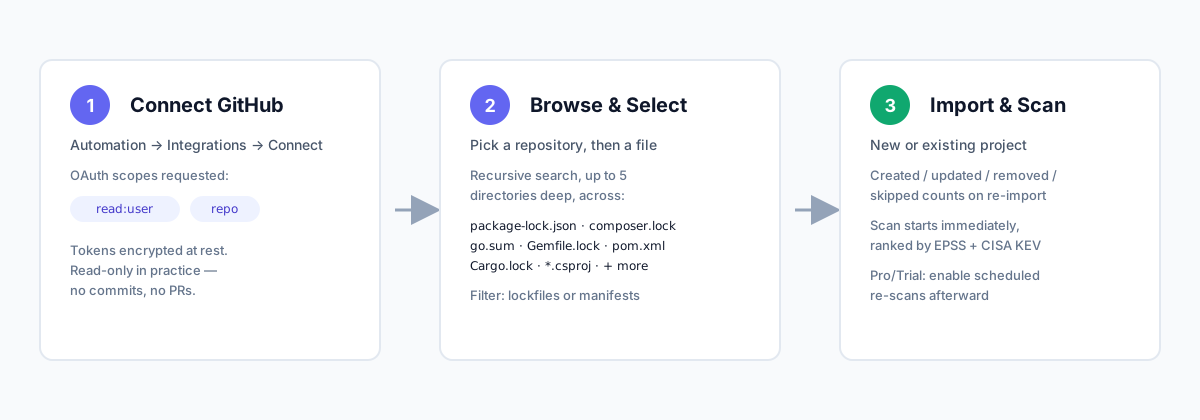
GitHub import is an OAuth-based connection, not a webhook or a GitHub App install. When you click "Connect GitHub" from Automation → Integrations, GeekWala requests two OAuth scopes through GitHub's standard authorization screen:
read:user— reads your GitHub username so the connection can be labeled and displayed back to you.repo— grants read access to repository contents, which is what lets GeekWala fetch manifest and lockfile contents (package-lock.json,composer.lock,go.sum, and so on) without you copy-pasting them.
GeekWala never pushes commits, opens pull requests, or writes to your repository — the scope is read-only in practice, even though GitHub's repo scope is technically read/write at the API level (GitHub doesn't offer a narrower "read contents only" classic scope). Your access and refresh tokens are encrypted at rest and are checked on every import; if GitHub revokes or expires the token, GeekWala flags the connection for reconnect rather than silently failing.
You can disconnect at any time from the same Integrations page, which deletes the stored connection and its encrypted tokens immediately.
Step-by-Step Import Walkthrough
- Connect your account. Go to Automation → Integrations and click Connect. You're redirected to GitHub's OAuth consent screen, where you approve the
repoandread:userscopes. GitHub redirects you back and GeekWala stores your encrypted access token. - Browse your repositories. Once connected, GeekWala lists the repositories your GitHub account can access. Pick the one you want to scan.
- Pick a manifest or lockfile. GeekWala searches the repository recursively (up to 5 directories deep) for supported dependency files —
package.json/package-lock.json,requirements.txt,composer.json/composer.lock,pom.xml,go.mod/go.sum,Cargo.toml/Cargo.lock,Gemfile.lock, and.csproj/packages.lock.json, across all 8 supported ecosystems. Results are grouped by directory, so a monorepo with multiple manifests is easy to scan even when the list is long. - Import. Choose whether the import creates a new project or adds to an existing one. GeekWala fetches the file content directly from GitHub, parses it, and — for a re-import into an existing project — computes exactly what changed: packages created, updated, removed, or skipped, so a routine re-sync doesn't read as a wall of noise.
- Review results. The import kicks off a scan immediately. You land on the project's scan results, ranked by EPSS exploitation probability and CISA KEV status rather than raw CVSS.
For repositories with more than one dependency file — a monorepo with a root package.json and a separate api/requirements.txt, for example — you can repeat the import per file, or use bulk import to queue several repository/file pairs in one request and get a per-repository success/failure breakdown back.
Free vs Pro Import Limits
GitHub import limits scale with your plan, read live from config/plans.php rather than hardcoded — so the numbers below reflect the shipped defaults, and your account page always shows the current figure:
| Plan | Repositories | Re-import / sync | Scheduled scans |
|---|---|---|---|
| Free | 1 repository | Manual re-import only | Not included |
| Pro / Trial | Unlimited repositories | Manual re-import anytime | Daily / weekly / monthly, automatic |
Free's one repository limit is a one-shot connection: you import a single repo, and re-importing that same repo to pick up new dependencies is a manual action you trigger yourself. Pro and Trial remove the repository cap entirely and add scheduled scans, which is the difference that actually matters for catching newly disclosed CVEs in the packages you already imported — the scan runs on a cadence instead of only when you remember to re-scan. A dependency someone adds after your last import still needs a manual re-import to be tracked.
Package count limits also apply independently of the repository limit — if your account is near its package ceiling, GeekWala checks only the net new packages a re-import would add (not the full manifest size), so refreshing an already-imported project doesn't get blocked by packages you already have tracked.
What Happens After Import: Scheduled Scans and Alerts
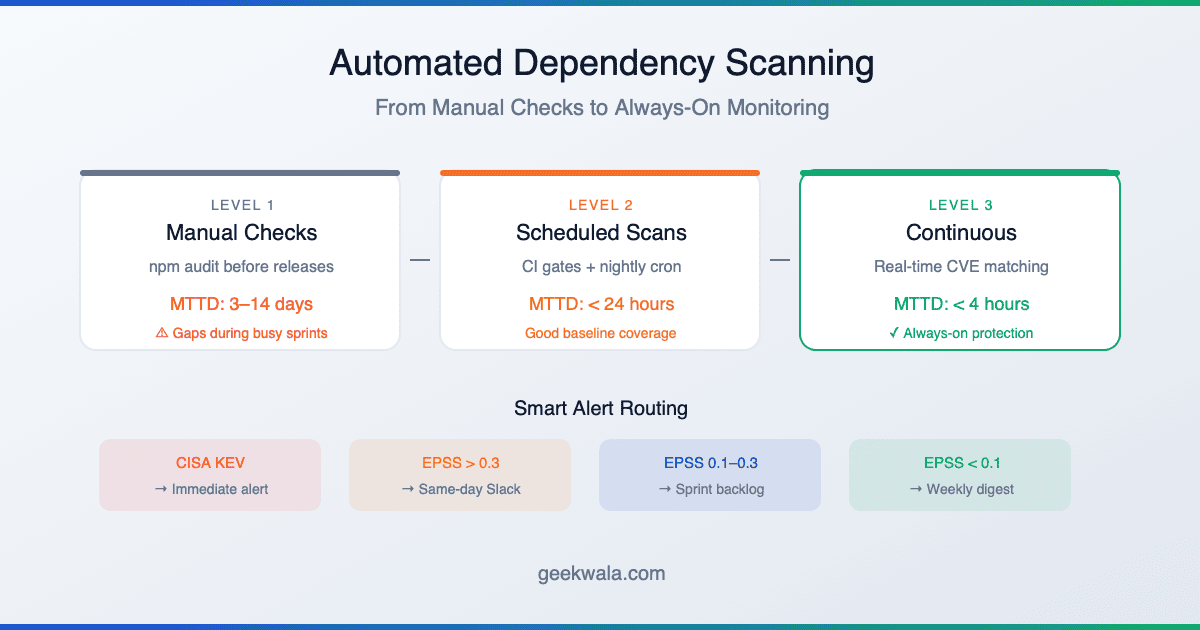
On Free, the imported project behaves like any manually-uploaded project: you see the current scan, and it stays static until you trigger another manual import or scan. On Pro or Trial, you can additionally enable scheduled scans (daily, weekly, or monthly) so GeekWala periodically re-scans the packages you imported without you doing anything (it does not re-pull the manifest from GitHub, so re-import after your dependencies change). Combined with the package security badge for your README, this is how a repository stays monitored on a schedule instead of only checked at import time.
Troubleshooting Common Import Failures
- "GitHub is not connected." Your session doesn't have an active GitHub connection — go to Automation → Integrations and connect (or reconnect) your account.
- "Your GitHub connection has expired or been revoked. Please reconnect your GitHub account." GitHub invalidated your token — this happens if you revoke GeekWala's access from GitHub's own OAuth Apps settings, or if GitHub rotates the token server-side. Reconnecting through Automation → Integrations generates a fresh token and clears the flag automatically.
- "No dependencies found in the selected file." The file GeekWala fetched parsed successfully but contained zero dependencies — usually an empty lockfile or a manifest with only devDependencies GeekWala's parser doesn't track for that ecosystem. Double-check you selected the right file if the repository has multiple manifests.
- "An import for this project is already in progress. Please try again shortly." Two imports into the same project overlapped — GeekWala locks per-project during import to avoid corrupting concurrent writes. Wait a few seconds and retry.
- "You have reached the free plan limit of 1 repository import." You're on Free and already have a repository connected. Upgrade to Pro for unlimited repositories, or disconnect the existing one first if you only need to swap which repo is tracked.
- "You have reached the [plan] plan package limit." The import would push your total tracked packages over your plan's ceiling. Remove unused projects or packages, or upgrade.
Most of these surface as a clear message in the UI rather than a generic error — if you hit something not listed here, the import screen shows GeekWala's actual response text, which is safe to copy into a support request.
Frequently Asked Questions
Does GitHub import work with private repositories?
Yes — the repo OAuth scope covers both public and private repositories your GitHub account can access.
Does importing give GeekWala write access to my code? No. GeekWala only reads manifest and lockfile contents to compute dependency vulnerabilities; it never commits, opens PRs, or modifies your repository.
Can I import a monorepo with multiple lockfiles? Yes. GeekWala's recursive search finds every supported manifest up to 5 directories deep, and you can import multiple files into the same project or split them across projects.
What happens if I disconnect GitHub after importing? Already-imported projects and their scan history stay intact. You just lose the ability to re-import until you reconnect.